How to Connect HubSpot to Dolfin
In this guide, you will learn how to connect your HubSpot account to Dolfin so that your deals, activities (meetings and calls) and users flow into Dolfin automatically — no manual CSV exports required. Once connected, Dolfin imports this data so your compensation can be calculated according to your comp plan.
We have separated this guide into different sections:
- Before you begin
- Connect HubSpot to Dolfin
- Permissions Dolfin requests
- Configure the integration — Users mapping & Fields mapping
- Disconnecting the integration
Before you begin
To connect HubSpot, make sure the following is true:
- You are an Admin in Dolfin.
- You have a HubSpot user account with permission to install apps / connect integrations in your HubSpot portal (a HubSpot Super Admin, or a user with App Marketplace access).
- You are connecting the correct HubSpot portal. If you belong to more than one HubSpot account, HubSpot will ask you to choose during the connection step — pick the portal that holds your live CRM data.
Note: You do not need to create an API key or a Private App. Dolfin connects through HubSpot's secure OAuth flow — you simply authorize the connection in a popup and HubSpot handles authentication.
Connect HubSpot to Dolfin
Connecting takes about a minute:
- In Dolfin, go to the Integrations page. You'll see the list of available integrations.
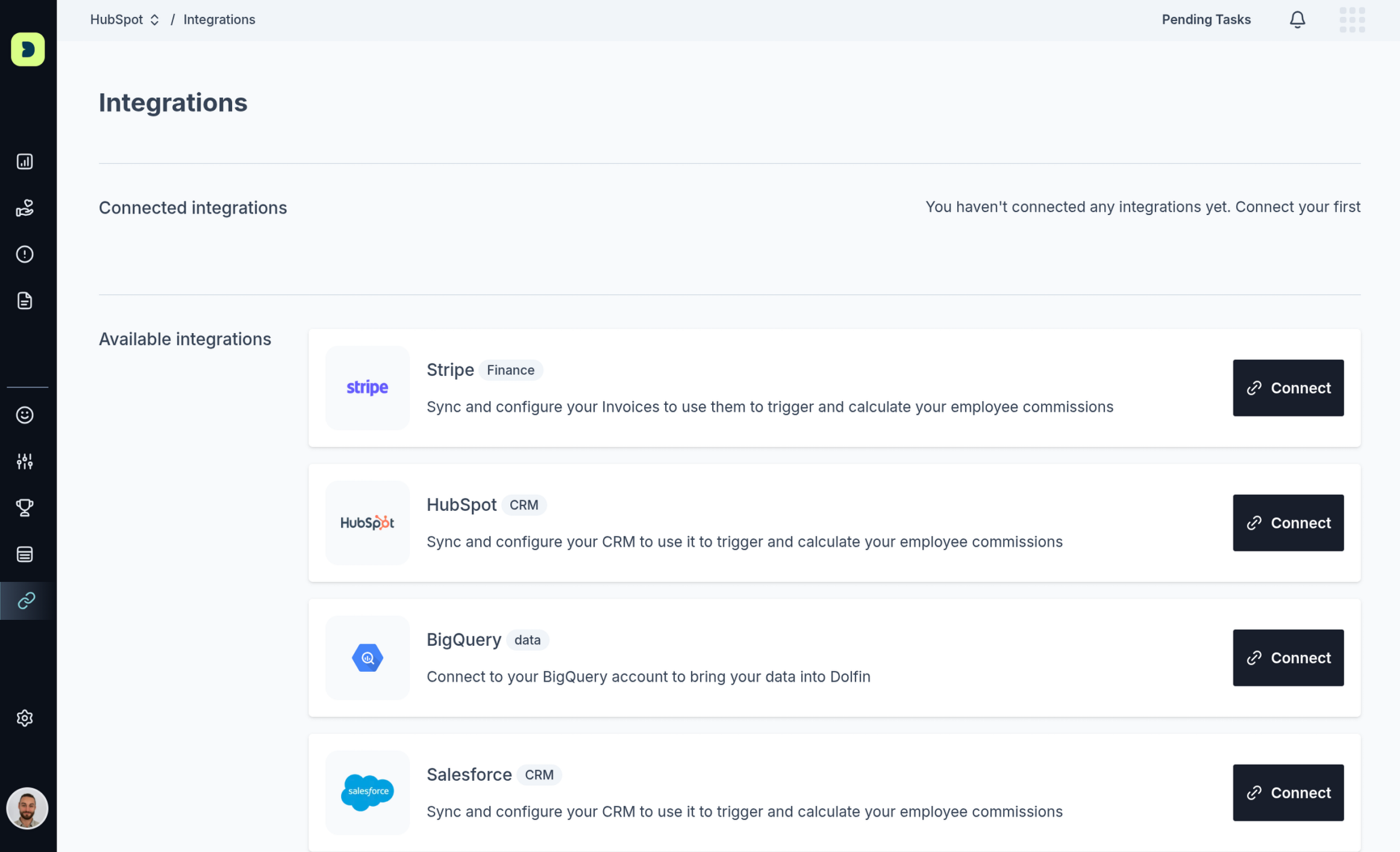
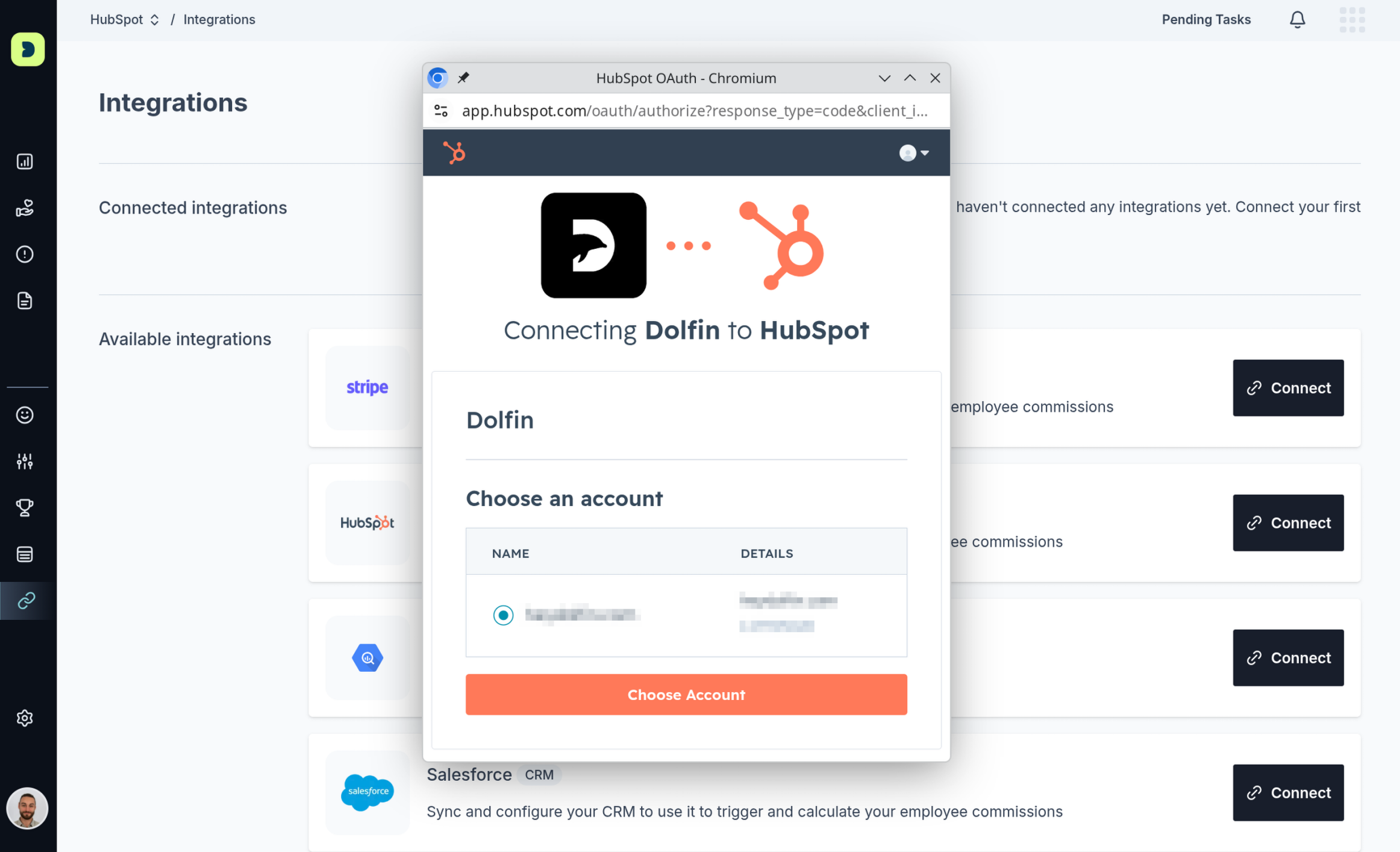
2. Find the HubSpot integration and click Connect. This launches the authorization process in a popup window.
3. Log in to HubSpot (if you aren't already) and, if prompted, choose the account you want to connect — select the portal with your CRM data.
4. Review the list of permissions Dolfin is requesting (see Permissions Dolfin requests below), then click Connect app to authorize.
5. The popup closes and the HubSpot integration in Dolfin now shows as Connected, ready to configure.
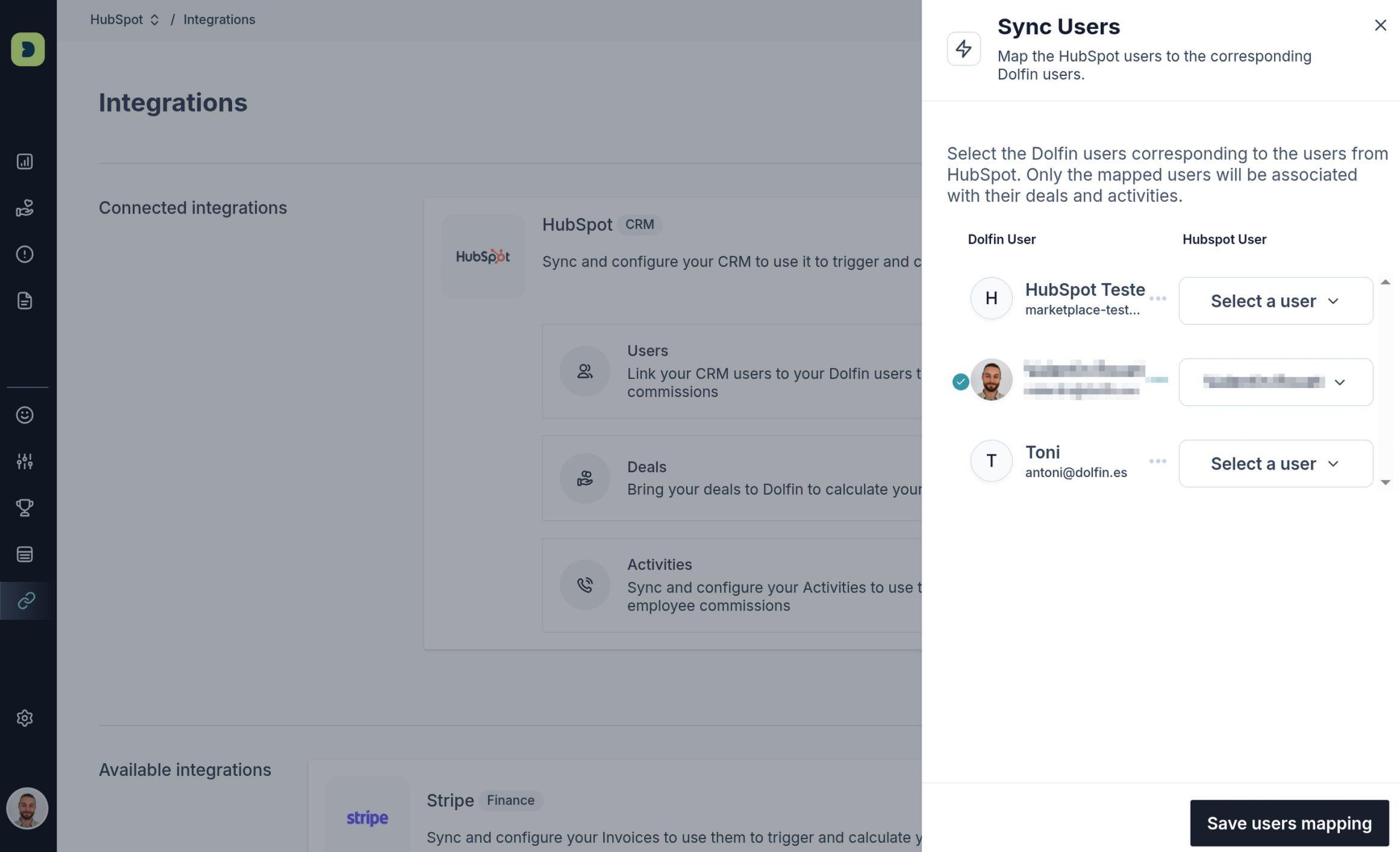
Once you have authorized the Dolfin app on your HubSpot account, you can configure it. There are 2 parts to the
HubSpot integration configuration: Users mapping and Fields mapping.
With User mapping, you can map your HubSpot users to Dolfin users, so your deals can be imported with the
proper owner, and their compensations can be calculated according to your comp plan.
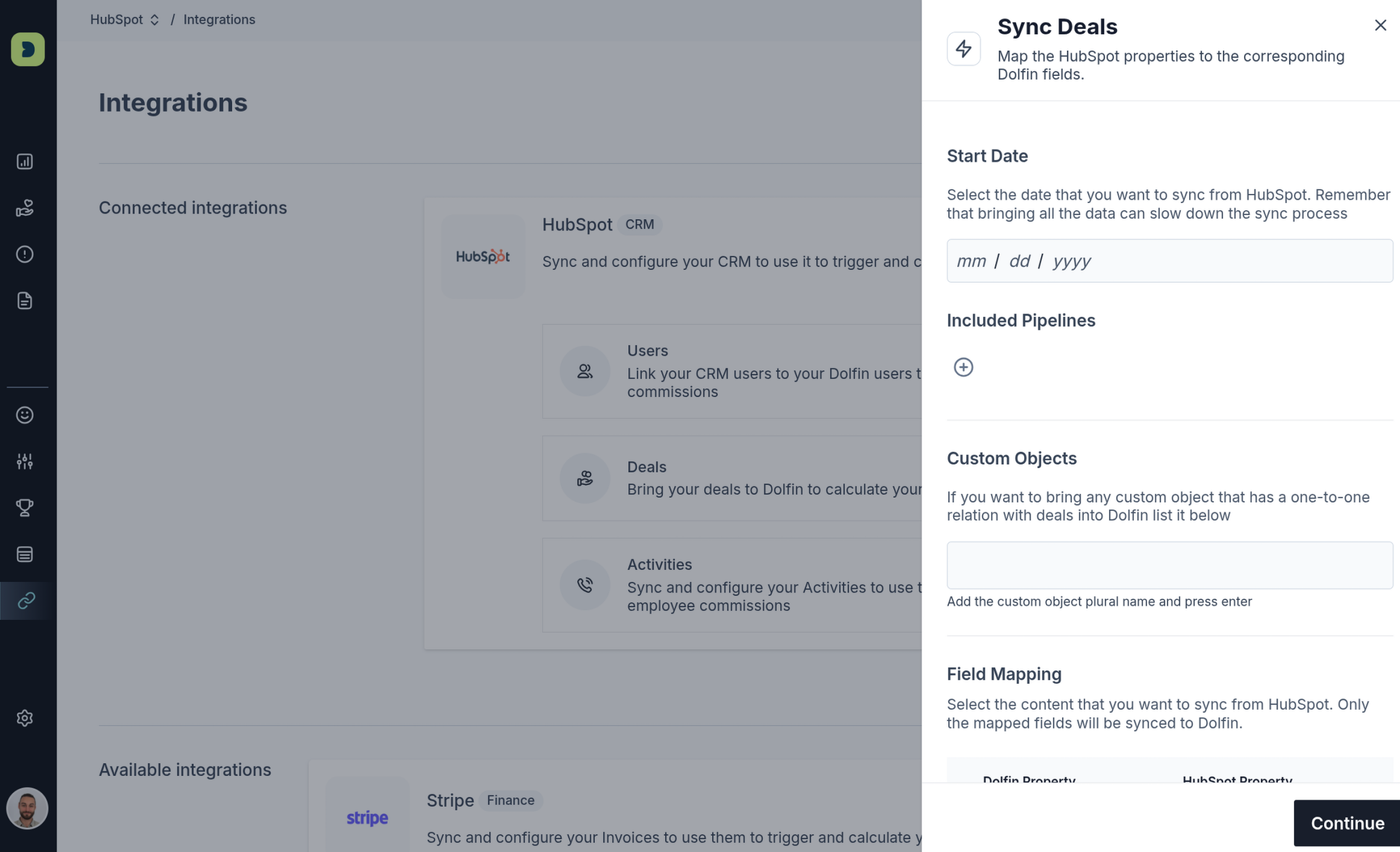
On the Fields mapping tab, you can map properties from your HubSpot deals and activities (meetings and calls)
to the corresponding field (standard or custom) on Dolfin. The left column lists all your Dolfin fields. Use the right
column to select a HubSpot property for each field you wish to map.
Permissions Dolfin requests
When you authorize the connection, HubSpot shows you exactly which permissions (called scopes) Dolfin is asking for. Dolfin requests only what it needs to import your deals, activities and users so compensation can be calculated. You don't select these manually — they're requested by the app and approved by you on the HubSpot authorization screen.
The standard Dolfin integration is read-only: Dolfin reads data from HubSpot to build compensation statements, and does not modify your HubSpot records.
Permission (scope) | What it lets Dolfin do |
crm.objects.deals.read | Read deals used to calculate commissions |
crm.schemas.deals.read | Read your deal properties so standard and custom fields can be mapped |
crm.objects.owners.read | Read HubSpot users (owners) so deals are matched to the right rep for Users mapping |
crm.objects.contacts.read | Read contacts associated with deals and activities |
crm.objects.companies.read | Read companies / accounts associated with deals |
crm.objects.meetings.read | Read meeting activities |
crm.objects.calls.read | Read call activities |
oauth | Standard permission required to establish the secure connection |
⚠️ Before publishing — confirm the exact scopes. The list above is a best-effort reconstruction based on what the integration does (imports deals + meeting/call activities + users, read-only). The scopes shown on HubSpot's authorization screen must match this table exactly, or certification review will flag it.
Get the authoritative list from your HubSpot developer account → Apps → [Dolfin app] → Auth tab → Scopes, then update this table:
- Remove any scope Dolfin doesn't actually request.
- Add any that are missing.
- Note which are Required vs Optional/Conditional — HubSpot's authorization screen distinguishes these.
Disconnecting the integration
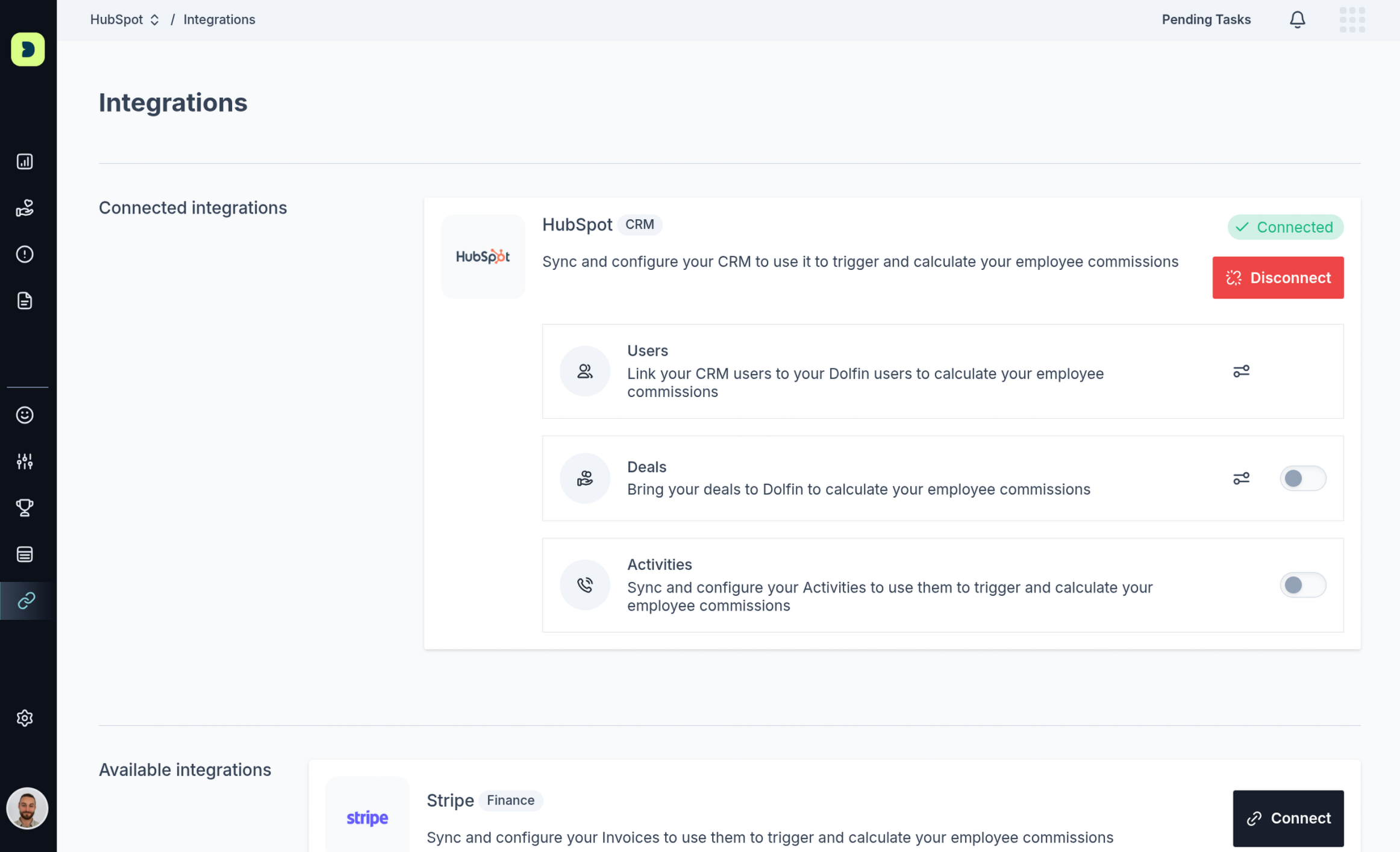
If you have connected a HubSpot account to your Dolfin organization, you will find it has a Disconnect button.
Click it to remove the integration from your Dolfin organization.
Troubleshooting
"I don't see the Connect button / it's greyed out." You may not have Admin rights in Dolfin, or your HubSpot user may lack app-install permission. Ask your HubSpot Super Admin to complete the connection.
"The authorization popup didn't open." Check that your browser isn't blocking popups for Dolfin, then click Connect again.
"My deals aren't appearing / have the wrong owner." Make sure Users mapping is complete so each HubSpot owner is matched to a Dolfin user, and that Fields mapping covers the fields you need.
Need more help? Reach out to the Dolfin team via the in-app chat.